Showing posts with label iPads. Show all posts

Wednesday, May 13, 2015

What to do with extra screens in the classroom?

A couple of my schools are experimenting with having an extra TV screen in their room. One of the schools has 4 e-Learning rooms with 1-1 iPads, 12 Chromebooks and 10 Laptops. They have a projector, a large TV and a small TV. The other school has two TVs, one large and one small.

I first came up with this idea last year when I did some demonstration teaching at Alfriston School in a Year 5/6 class. The room had a projector and one TV. I had picked up a 21 inch TV with an apple TV so I thought I would try it as an independent centre. Students were using it for peer editing and collaborative games. So now the class had a main TV for a teaching station where groups would come for their instructional teaching, and a smaller TV that students could use themselves.
Clevedon has put a smaller TV in all their e-Learning rooms and the following are suggestions of ways to use them.

Ways to use the 'extra' small TV in the classroom
It is best placed on a large table that will fit at least 6 students around 


Work Station
  • teacher starts an online modelling book with students and then leave them to continue with activities
Writing peer editing group
  • students share their writing with each other, five minutes reading and commenting, then use the TV to look at the comments and the author can improve writing discussing comments with others
  • collaboratively write one piece of writing and use TV to view with all students contributing ideas

Workshops
  • have one computer or iPad mirrored with problem to solve or game to play
  • students collaboratively solve together, using other iPads/laptops/maths books to record
  • start a workshop or online modelling book with a group and leave them to continue

Games
  • one iPad or laptop mirrored, game is passed around with others offering advice
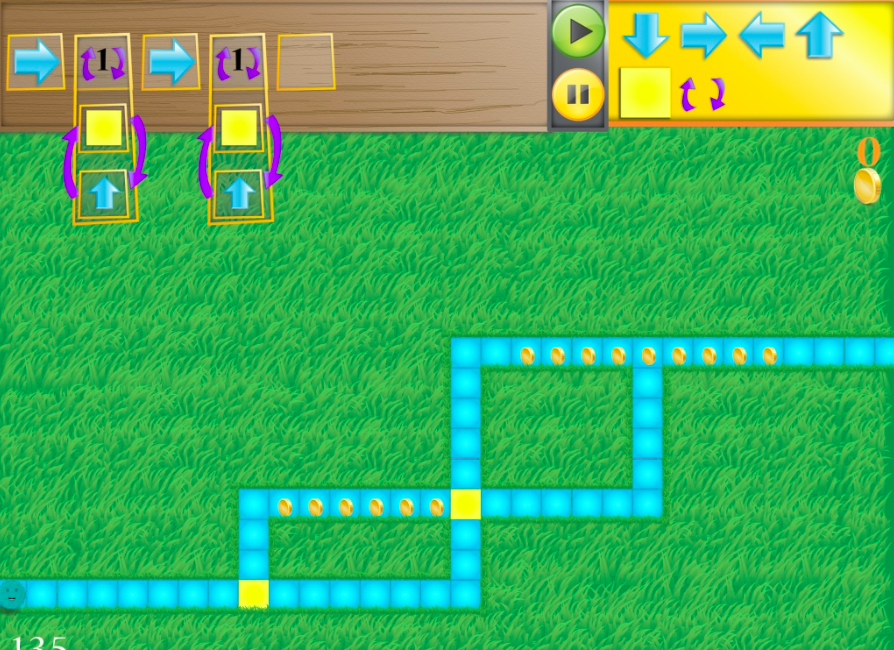
  • work through a coding project with a group (students will need to work out their codes on paper, or whiteboard table or whiteboard app

Research
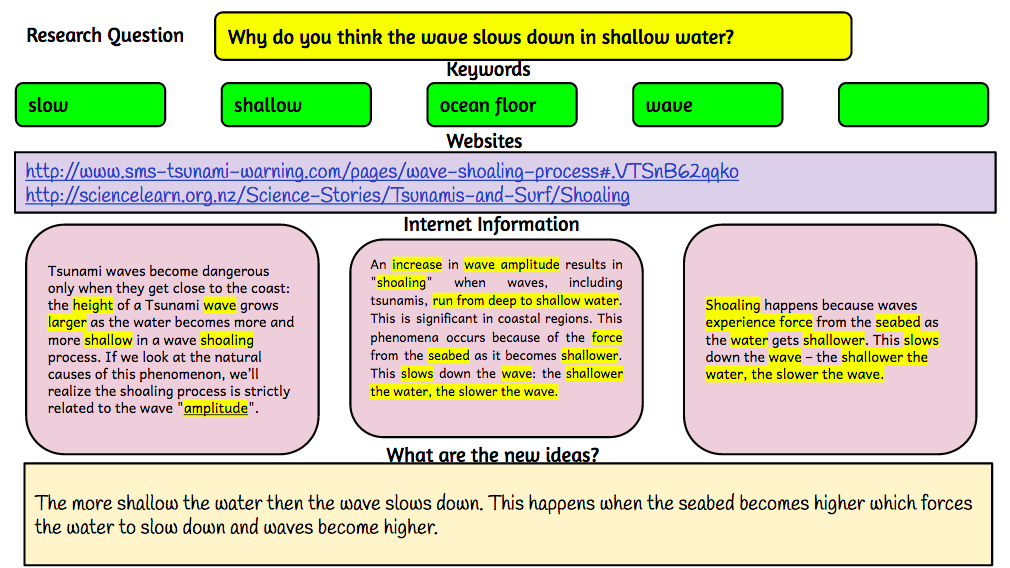
  • collaborative research with students looking up information and filling in graphic organisers (students can be using their own devices to look for information and add to collaborative document, collaborative document can be on TV screen for all to see)
Screen Shot 2015-04-20 at 8.40.08 pm.png
  • TV screen can be used to show mindmapping, one student typing up what other students are suggesting

Reading
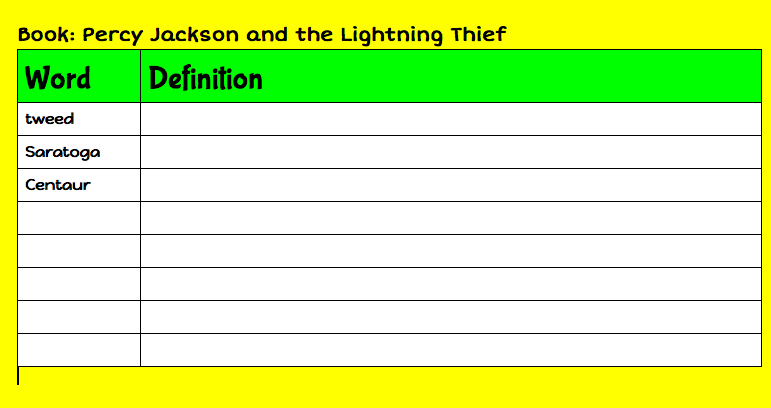
  • students sitting reading through text, adding words to collaborative doc, then searching for definitions after the reading

Friday, August 8, 2014

Fourth and final day of 'Walk the Talk' Alfriston

Today was the last day of my Walk the Talk. The students know the drill now and settle down very quickly to all of their tasks. Writing still seems to be their favourite and we are receiving some wonderful writing from them. The following are examples of writing that is still being edited

And another
and then there was the 'Peer Editing'...
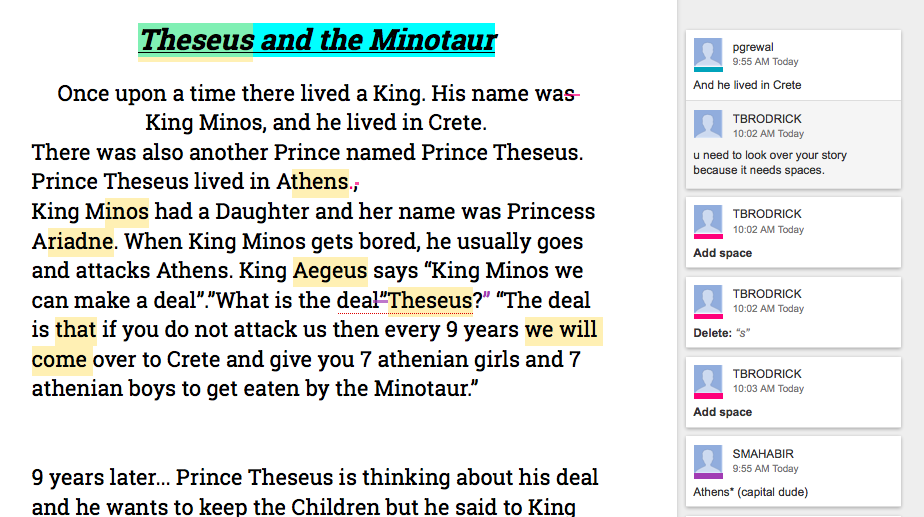
The students sat at the 'Teaching and Learning Station'  table with their Chromebooks reading, suggesting, commenting on one student's story that had been shared with them. The story to be edited was also mirrored to the TV through my Mac Laptop. Here are examples of students commenting on student work (Note the last comment in the first example 'Athens (capital dude)'
The students knew what their Learning Intentions and Success Criteria were and used that as the basis for most of their comments.


This was a great way for students to be part of the editing process, and they were all learning at the same time.
At the beginning of the Writing session I also pointed out the Different Ways to Publish your stories on the wiki.

Once the Students have finished their publishing, they will start the whole process again but with a myth of their choice, starting off with the Graphic Organiser.


Reading
The Novel study groups have been reading their books on the Kindle either on the Chromebooks or the iPads.
They also have been working on their Vocab logs as they read their novels.
 I use the Vocab Logs to teach from. We choose a word from the lists they have made, we go to Kindle, search for the word, read it in context in however many hits of the word we get. Then we tap and hold on the word and get the Dictionary meaning, and if it is a suitable word for it, we tap on Wikipedia or Google to find out more information about the word. Then we bring it all back to the context of the story.
They also have to keep up with their Chapter Title Assignment of Predictions and Adjustments.

The Journal group are learning to skim and scan a play


Maths
The changes to the workshops worked well with me being able to leave the students to keep on doing the learning themselves without me. I used Thinking Blocks Fractions app
with these students. One boy who had been having difficulties, really responded well to this app and completed a page of work, and was so proud that he now understood how to do Fractions of a number now.


Student are managing their Google Maths Docs well, they
  •  have highlighted the WALTs they need to work on
  • are copying/pasting the activities they are doing to their timetables. 
  • are recording examples and totals they have achieved in iPad games or Internet games
  • they are reflecting in their maths book about how the activity went
I have suggested to their teacher that they record in their timetables when they have attended a workshop as well.
Mixture of bookwork and computers

Teaching improper and mixed fractions using a game on a website, students look at the problem, solve it in their books, discuss, argue, agree and then check answer on screen. I left them after the first 2 problems, they were sorting the learning out for themselves.

Inquiry
Today the students started writing their Research question. The first steps to designing a research question is to write down what we already know. I introduced them to the Graphic Organiser
Writing Questions. They went to the Wiki Research page and clicked on the link to open it and then they made a copy and saved it to the Room 9 folder so that I could access it.
This took them most of the session. Some of them still need to work out which one will be there research question. Once they have an idea,  I would suggest that they use the 'Big Wide Question' graphic organiser, that I made specially when I observed some students in another school trying to develop their questions.
Once they have developed their question they will need to identify what their keywords will be. With all of the work we have done with keywords this week, they should be able to manage that part of the task easily.
Now it is time to look for the information using the keywords, collect and store which they can do in this Google Doc.

I have had a wonderful 4 days working with Room 9 and co-teaching with their awesome teacher Bonnie.
The successes were:
  • the large TV with an Apple TV, iPad and Mac laptop. I was able to use both my Mac and iPad to teach from
  • the Learning station with the small TV for students to mirror what they were doing and have other students peer edit, comment, solve problems etc
  • Google Docs, all student work was shared in a folder to me, so when we wanted to peer edit, I opened on my mac, mirrored to large TV and they were able to edit on their Chromebooks, and all could see at the same time on the large screen
  • TV was great for playing Youtube movies on Egypt, excellent clear picture and great sound
  • Chromebooks worked well for all students, easy to use and access
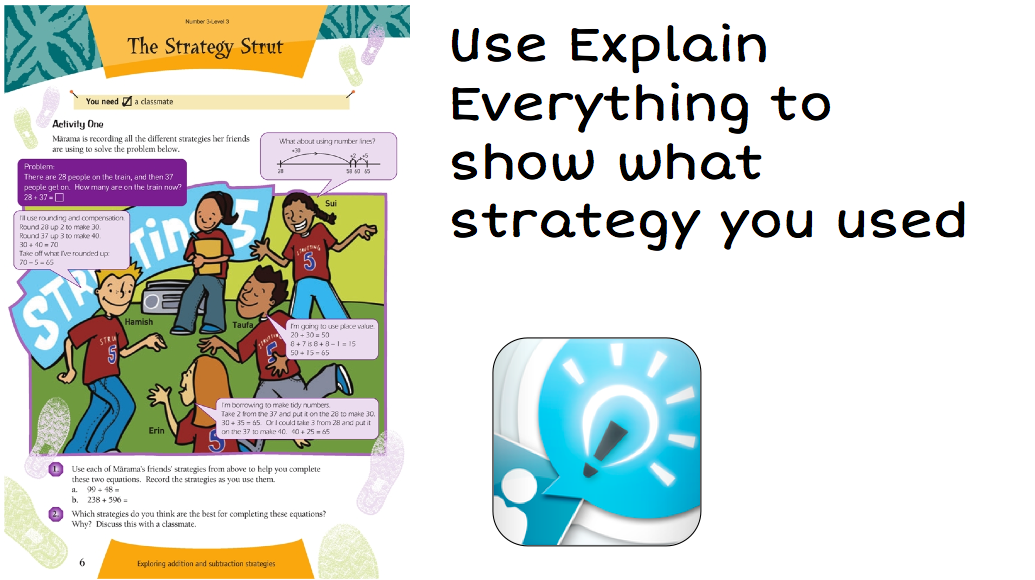
  • using iPad apps as teaching tools i.e. Explain Everything
  • kids teaching kids, I could start them off and leave them to it
  • kids not wanting to stop writing, and letting them do just that...I called reading groups as I wanted and the others could keep on writing
  • the self pacing maths doc, kids working at their own speed on activities that they wanted to do
  • kids making choices about their learning
  • kids knowing what they were learning and were able to articulate it when asked
And probably a whole lot more that I will remember later. The only 'not so successful' was
  • getting Chromecast to work, but hopefully that will be solved soon
  • the occasional internet slow down but that could be due to all the devices being connected and used at the same time (along with all the teachers who were visiting and their devices that they were using courtesy of the school's Daily Passcode)
All in all, a great few days for the students, teachers and myself!
Tuesday, August 5, 2014

Day One: Walk the Talk Alfriston

I am teaching for 4 days at Alfriston School in South Auckland in a Year 5/6 class.
The school has just started on their e-Learning journey with 3 classrooms Yr 0-1, Yr 3-4, Yr 5-6 who have all been working with me this year.
This classroom is trialling tables instead of desks, and after a couple of weeks, students are not missing their desks at all. The school has purchased one high table, and one whiteboard table to test out in the room. I heard some students say today "I love working at these high tables!

I have made a wiki that is for the students to get their resources from and for teachers to see how I did the teaching. Wherever possible I will be using the SAMR model to show how I thought about 'Teacher Delivery' and 'Task Design'.

View Walk the Talk Wiki

Today I set up 2 Apple TVs, one on the big TV and one on the small TV (18"). These will become teaching and learning stations for the students.

This class has 9 Google Chromebooks, 8 windows computers, and I have brought in 4 iPads, a Samsung tablet and a Surface Pro.

Writing
I introduced them to the story of Theseus and the Minotaur by handing out copies of the story which they read in groups. It is also available for them on the wiki. I walked around and discussed the main points with the groups.
After a while I stopped them and showed them the Narrative Graphic Organiser. They could choose to do an Inspiration one on the iPads or use Google Docs on the computers.
Once the students had finished the Graphic Organiser, it was printed out and is now the structure for their narrative writing for the next day.

Reading
Today was all about introducing 2 groups of students to their Reading Task Google Doc. This involved them downloading it to their Google Drive, copying it, renaming it and moving it to the shared class folder so I could view it. They then had to do the same thing with their Vocab log and Chapter Title Assignment. This was quite time consuming and this is where 'Teacher Dashboard' would have come in handy.

Example of one group's Reading Task Doc


Maths
The students are working on Fractions, Percentages and Decimals at the moment and I have created a wiki page that leads to all of their resources. I am focussing this week on Fractions.
This page has the downloads they need for some games and their workshops that are completed with me or independently.

View Maths wiki page


They also have an Independent self pacing Maths Google Doc where they have to record what tasks have been completed.


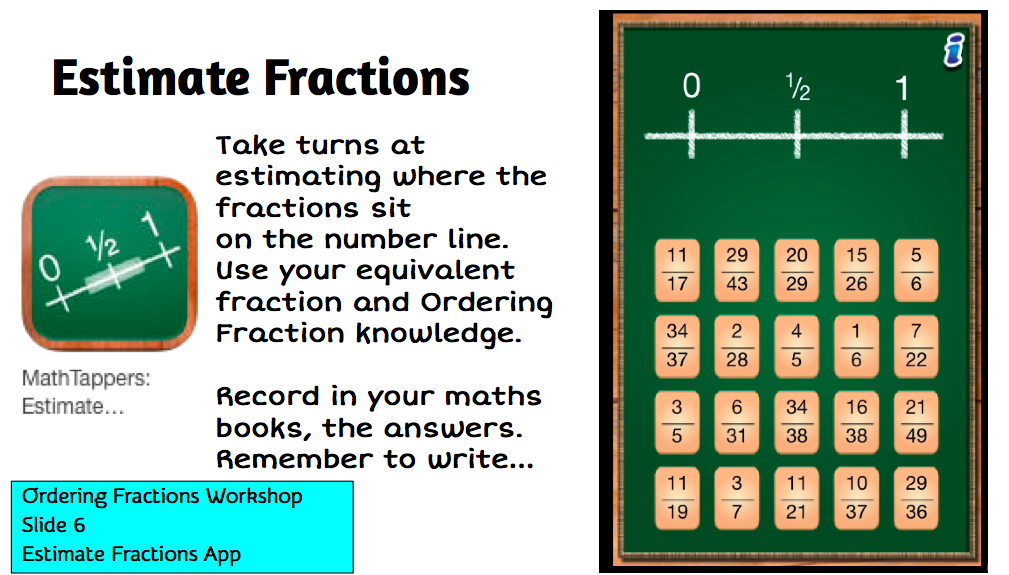
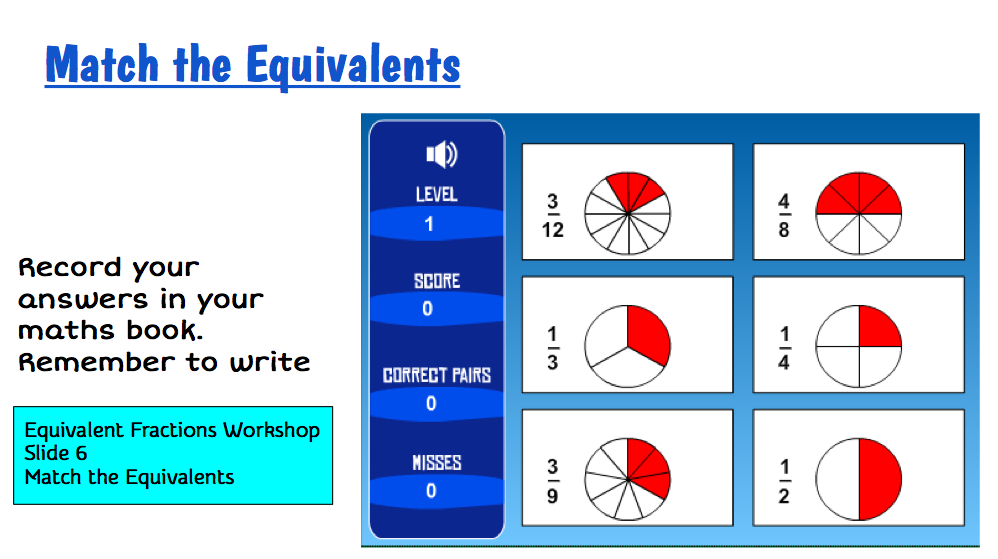
I worked with one group today while the others worked through their tasks. We started the workshop Equivalent Fractions. We focussed on Slide 2 and looked at Equivalent Fractions.


We tried some examples using the app Explain Everything which was shown up on the screen at the Big TV learning station.

This was very successful, and the students eventually started racing the person who was completing the task on Explain Everything by writing the answers in their maths books.


Inquiry
I started the Inquiry topic today with a focus on Keywords. This is the presentation I am using.


And this is the SAMR model I am following. We completed the tasks in Substitution and Augmentation. The students used their topic books to record their keywords. Both TVs were used with iPads mirroring the story.


Thursday, March 21, 2013

Observation Clevedon #5

Rachael has fine tuned her Daily Five options and shared with the whole class. She is just working with Reading at the moment. Students are able to access this through Google Docs. Her aim is to develop independence and self management.


I worked with a reading group today in Rebecca's room, with a particularly difficult text on estuaries (The secret life of Estuaries. Connected 3 2006). Students had their iPads and journals and we worked at the TV Learning Zone. Students had the Dictionary app open so that they could look up words that they didn't know.

 When I do this activity again I will get students to record in Notability what words they checked, and a followup task would be to find the suitable dictionary meaning using Dictionary (or search in Google with search term being the 'word' and Define). They could write the sentence from the book and replace the dictionary word with a synonym if applicable.

Every now and then I would ask a student to mirror their iPad so that we could discuss the dictionary term they were looking at.


There were 2 diagrams in the story. I got them to take a photo of the first diagram and annotate the different parts of it. When we came to the next diagram they did the same thing. The diagrams were a visual aid of the text relating to the text they had just read. Some of them started to jot down some notes as they would have to write an explanation later.


Sunday, March 3, 2013

Oberservation Week 4 Holy Cross

Looking around the whole Year 5/6 class I could not see one single child who was not engaged. They were working in pairs using iPads and the PuppetPals app or computers. One child used her initiative and used the notes app to record her thoughts as she was creating in PuppetPal.


Later in the day they were making choices about how they were going to record their information. I introduced one child to Pic Collage, who then started teaching another.
I loved seeing the individual creativity that was coming out, they were choosing the digital tools they wanted to use.


 Sarah had extra students in her class today (40 in total). But still everybody worked well, with students moving between iPads and computers.
 These students were writing up important events that happened in the years since they were born. I told them about 'This day in history' and they were able to track events and complete their tasks.


Students were mindmapping their ideas so I introduced one group to Popplet. The teacher set up a class account. Students can do 5 different mindmaps before they need to delete them to make room for more. So another tool was added to their digital toolkit today 'Popplet'.

Wednesday, February 13, 2013

Beginning the e-Learning Classroom

This term I am mentoring 4 teachers in 2 different schools who have started e-Learning Classrooms.
It has been interesting to see in my first 2 classrooms what the issues and successes are so far.
In setting up an e-Learning class after all the class rules, routines have been covered there has to be a fair bit  of time spent learning about the digital tools. Students need to know the  safety and care rules and be exposed to Digital Citizenship. Digital Toolkits will start being organised and alongside this is how to deal with troubleshooting.
Clevedon School has 2 e-Learning classrooms
  • Year 5/6
  • iPad each (BYOD)
  • 1 iMac
  • 2 Windows computers
  • 6 laptops
  • projector
  • apple TV
  • Large screen tv
Some of the Issues were
  • Apps crashing (this is a help diagram that I have made in Inspiration, it can be printed out and put on the wall and/or screen captured and put on a wiki or a blog as a reference) Download as a PDF or Inspiration 9 file
  •  children wanting to listen to music (which the teacher was able to fix by giving the group a splitter and they plugged in their headphones and listened while they worked)


  • Wireless dropping off or defaulting to another network that will not work which leads to students constantly telling the teacher that something isn't working. To help students become more independent they need procedures that they can follow for when 'Things just don't work'! I suggested a flow diagram that students could refer to when they lose wireless.


Successes
  • Students getting excited when they find something that is cool (and it is actually helping their learning) 
  • Rachael and I trying out how Notability could be used for Spelling and then Rachael coming up with the idea of using Notability as her modelling book for writing and sharing as a PDF to Dropbox everyday as it gets updated. Students can look up what were the teaching points for that day
  • Students smiling while they are listening to music and working on their writing at the same time
  • Students asking questions about how they want to do something that looks like this, and how could they do it?
  • Students sharing when they find out something new. (I suggested to the teachers that they show one child first how to do something then that child will have have to go and pass it on to another)
  • Me sharing tips and tricks to one child and then telling them to pass it on 
Rebecca has been talking about Digital Citizenship and students have mindmapped, made lists, discussed and now they are going to  make Cybersafety posters. They were given a choice of tools that they could use
  • any of the apps on the iPad
  • Standalone computers using Paint and/or Word
  • Laptops using Kerpoof or City Lego Comic
  • Paper, pencils, felt tips
 At the end of the day Rebecca summed it up, 'Well that went better than what I thought!'
We as teachers have to let go of the traditional way of thinking that all students have to produce the same product. Let them have the choice of how they want to present their findings, they will find it more engaging and interesting. The atmosphere in the classroom was great that afternoon, everybody was busy, working on their own individual task but there was a collaborative buzz as they talked about what they were doing and asked for help from their peers and teachers.